With the new Link invoices feature, you can easily connect two or more invoices together. This is useful when invoices are related, for example in cases of:
- Split invoices
- Corrections / supplementary invoices
- Partial payments
- Multiple invoices for the same project or contract
There are no restrictions: any invoice can be linked to any other invoice. Note: Linked invoices are currently only visible to financial employees.
Where can you find this functionality?
The functionality is available at invoice level, in the invoice detail view.
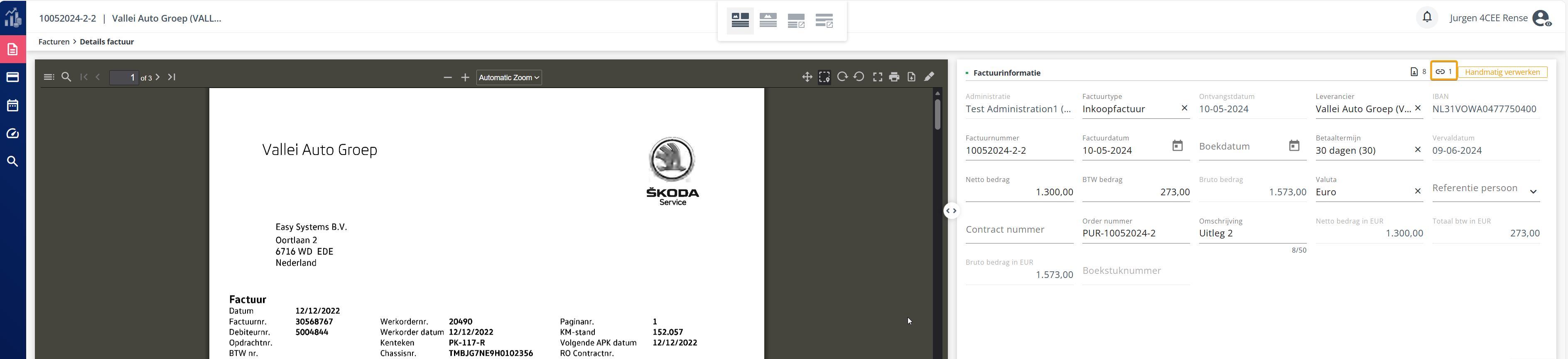
An overview of the linked invoices and the option to link invoices is shown below.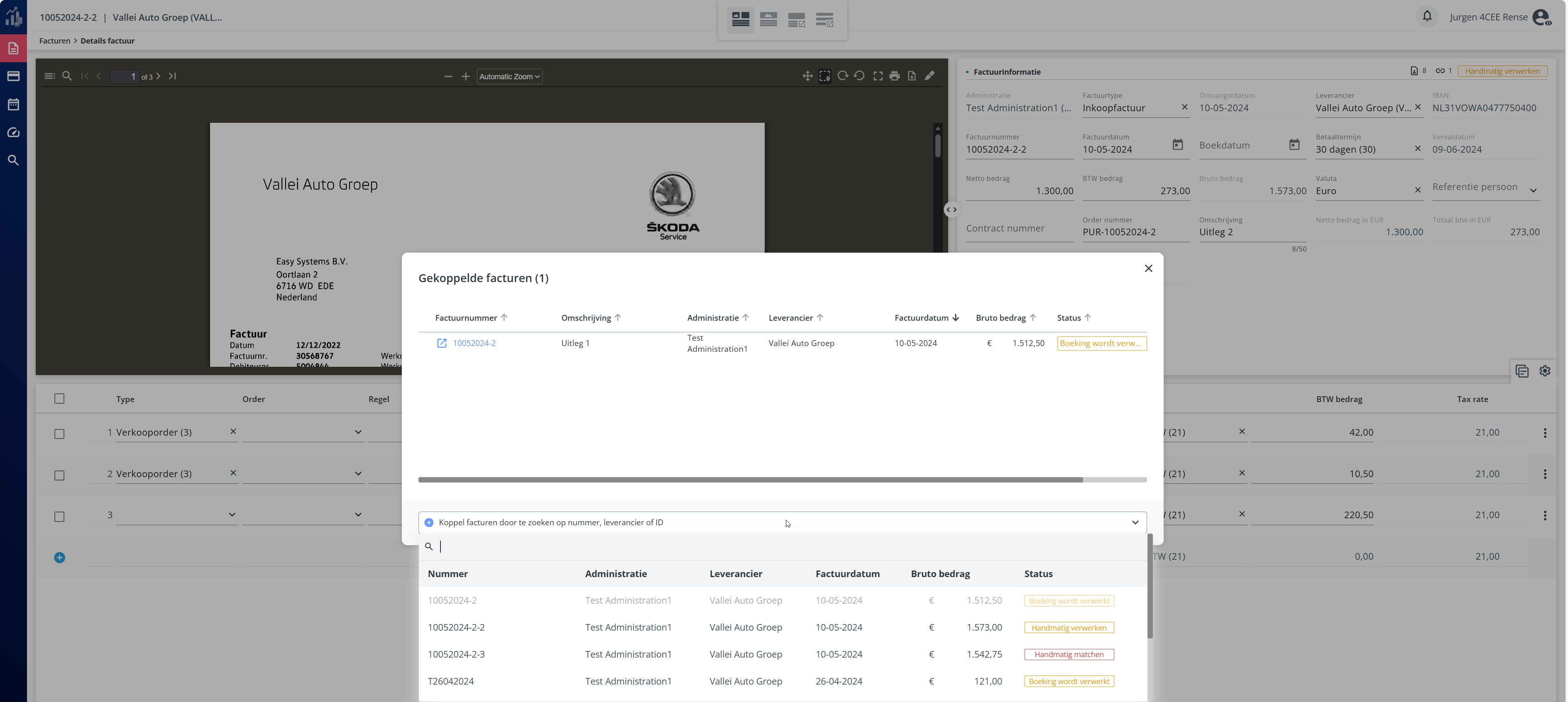
Step-by-step instructions
- Go to Invoice Overview and open the invoice you want to link.
- Go to the section ‘Link invoices’ above the header fields.
- Search for the invoice you want to link
- Use the search function by invoice number, supplier or amount.
- Select the desired invoice.
4. Confirm the link
- By selecting and clicking on a found invoice, it is automatically linked. The invoice will now appear as linked.
5. View linked invoices
- In the invoice screen, the linked‑invoices icon will display a number indicating how many invoices are linked. When you open the dialog, you can open the linked invoices in a new tab.
Frequently asked questions and issues
❗ I do not see the option to link invoices
- Check whether your role includes financial employee.
- The feature is (currently) not available for budget holders or purchasers.
❗ I cannot find an invoice to link
- Check the correct invoice number or supplier.
- It is possible that you do not have permissions for the administration in which the invoice is located.
❗ Linked invoices are not visible to my colleague
- Only financial employees have access to linked invoices at this stage.
Tips & best practices
- Use the feature to complete files for audits or compliance checks.